Document & Browser Tabs
Center-pane tabs aren't only terminals. This chapter covers the other two kinds: document tabs (built-in Markdown / source editor) and browser tabs (embedded web pages). They live side by side with terminal tabs and are never displaced by opening a session.
1. Document tabs
1.1 Opening
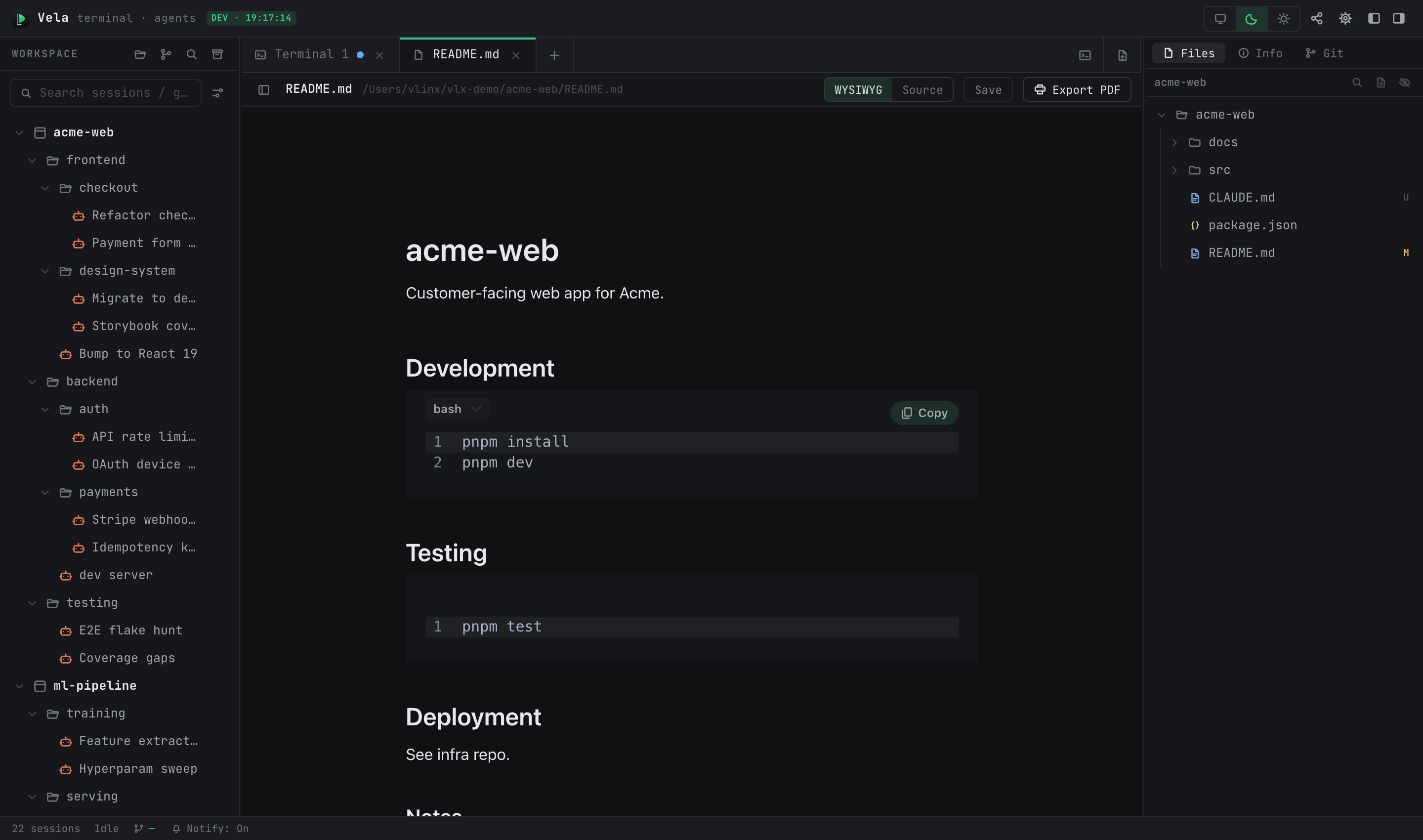
Type vopen <file> in any session and a document tab opens in the center pane; inside a claude conversation the /vopen skill does the same (requires the Vela Skills toggle in Settings ▸ General). The view is chosen by file type:
| Type | View |
|---|---|
| md / markdown / mdx | Dual-mode editor: WYSIWYG by default, switchable to source mode |
| Images (png / jpg / gif / webp / svg, …) | Built-in image viewer (chunked loading for large files, fit-window / 1:1 toggle) |
| Everything else | Source editor with automatic syntax highlighting (~150 languages, matched by filename) |
1.2 Editing and saving
- The WYSIWYG / Source segmented control in the header switches modes at any time (markdown only); edits carry across.
- ⌘S or the Save button writes to disk. If the file changes on disk outside VelaTerm, a banner offers reload-or-ignore — no silent overwrites in either direction.
- Closing a tab with unsaved changes asks: Save & Close / Close Without Saving / Cancel.
- ⌘F brings up the unified search bar: find, replace, match-case — identical in both editor modes.
- The sidebar (toggleable, resizable) shows the document outline and the containing folder's file tree; click a file to switch to it.
1.3 New documents and PDF export
- The "new document" button in the tab bar's + area (desktop only) opens a blank draft: not in the tree, not on disk; the first save goes through the system Save As dialog, and syntax highlighting follows the saved filename.
- "Export PDF" renders markdown to a vector PDF (auto-paginated, CJK fonts embedded) — Save As on desktop, direct download in the browser.
2. Browser tabs (desktop only)
The third tab kind embeds a real web page (native WebView) — handy for pinning docs sites, issue pages, or preview URLs into the workspace. Not available in remote / mobile clients.
Four entry points: the built-in-browser button in the tab bar's + area, the ⌘⇧B shortcut, vopen <url> in a session, and right-click "New Browser Page" in the sidebar.
Two forms:
- Scratch tab: what ⌘⇧B or
vopen <url>opens — a draft that isn't in the tree and doesn't survive restarts; right-click the tab to convert it into a persistent node. - Browser page node: created via "New Browser Page" in the sidebar — a tree node whose URL is persisted, still there after a restart.
Security boundary: the embedded page is a fully isolated external website — it gets no VelaTerm internal permissions or credentials, and only http / https URLs are allowed.
3. How the three tab kinds coexist
- Terminal / document / browser tabs share one tab bar; ⌘1–9 switches among all of them alike.
- Opening a session from the tree only ever reuses session tabs — documents and browser tabs are never displaced.
- Documents and browser tabs have no split panes; ⌘W closes them directly (with the three-way confirm for dirty documents).