Remote Development & Management
This guide covers two things: opening your local VelaTerm up to other devices, and connecting out to remote machines to develop and manage sessions there.
1. Two entry points, two directions
Both remote features live on the right side of the title bar (next to the theme switch):

The globe icon is Remote Access (Browser) — open this machine up so a phone, tablet, or another computer can use your VelaTerm from a browser. The arrow icon is Connect to Remote Server — this machine acts as a client and connects out to develop on another machine. When the server is running, the globe lights up green.
| What you want | Which entry |
|---|---|
| See and operate this machine's sessions from a phone / tablet / another computer | Globe button (Remote Access) |
| Work on a remote Linux / macOS dev box that has nothing pre-installed | Connect button → SSH mode |
| Connect to another VelaTerm that already has remote access enabled | Connect button → URL mode |
2. Opening this machine up (Remote Access)
2.1 Start the server
Click the globe, set a port (default 8799 — change it if occupied) and an access password, then Start Server:
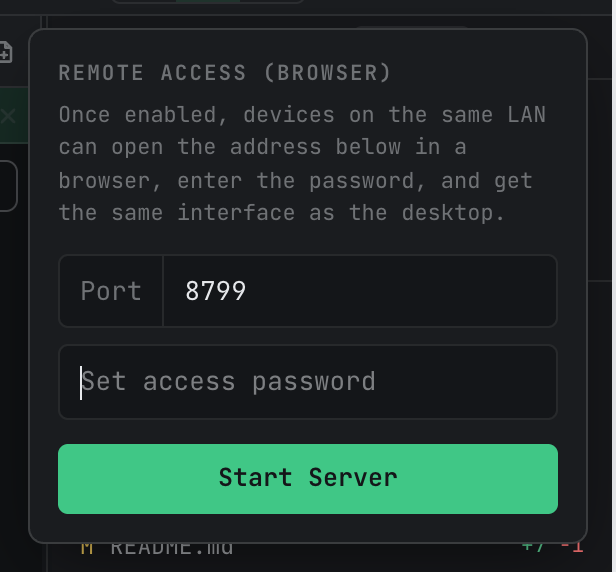
The access password is required for any device to get in. It's only valid while the server runs; after stopping, set a new one next time.
2.2 Connect a device
Once running, the panel shows the status, the certificate fingerprint, and an auto-generated pairing link:
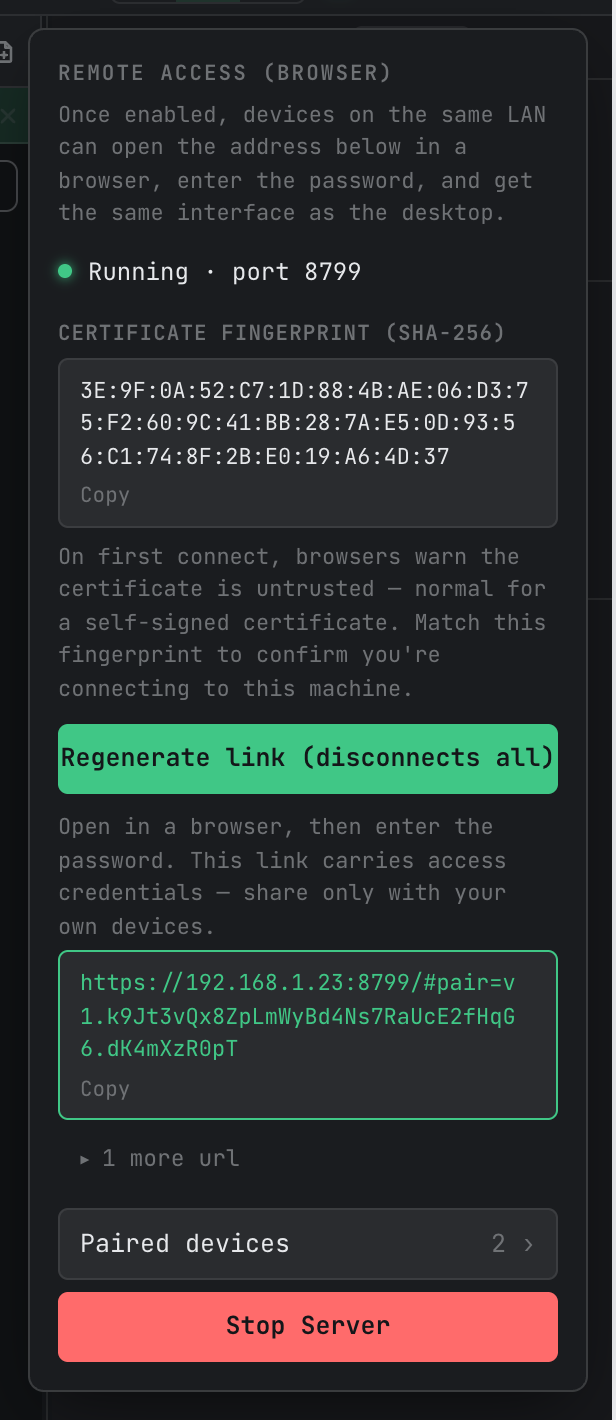
To connect: send the pairing link to your own device (AirDrop, message-to-self — whatever works), open it in a browser, and enter the access password. The link carries the encrypted pairing credentials; browser-to-machine traffic is end-to-end encrypted. Two things to know:
- The link is a key. Only share it with your own devices. If you suspect it leaked, hit Regenerate link — the old link is invalidated immediately and all connected devices are disconnected until they use the new one.
- On first connect the browser will warn about an untrusted certificate — normal for a self-signed cert. Compare the fingerprint the browser shows with the Certificate fingerprint in the panel; if they match, you're talking to your own machine.
With multiple network interfaces (wired, Wi-Fi, VPN), the panel shows the preferred address and folds the rest under "1 more url" — pick the one on the same network as the connecting device.
Opening the same link on a phone automatically switches to the mobile layout (two-level navigation plus a terminal key bar) — no setup.
2.3 What the browser side feels like
The login page and main UI a connected device sees:
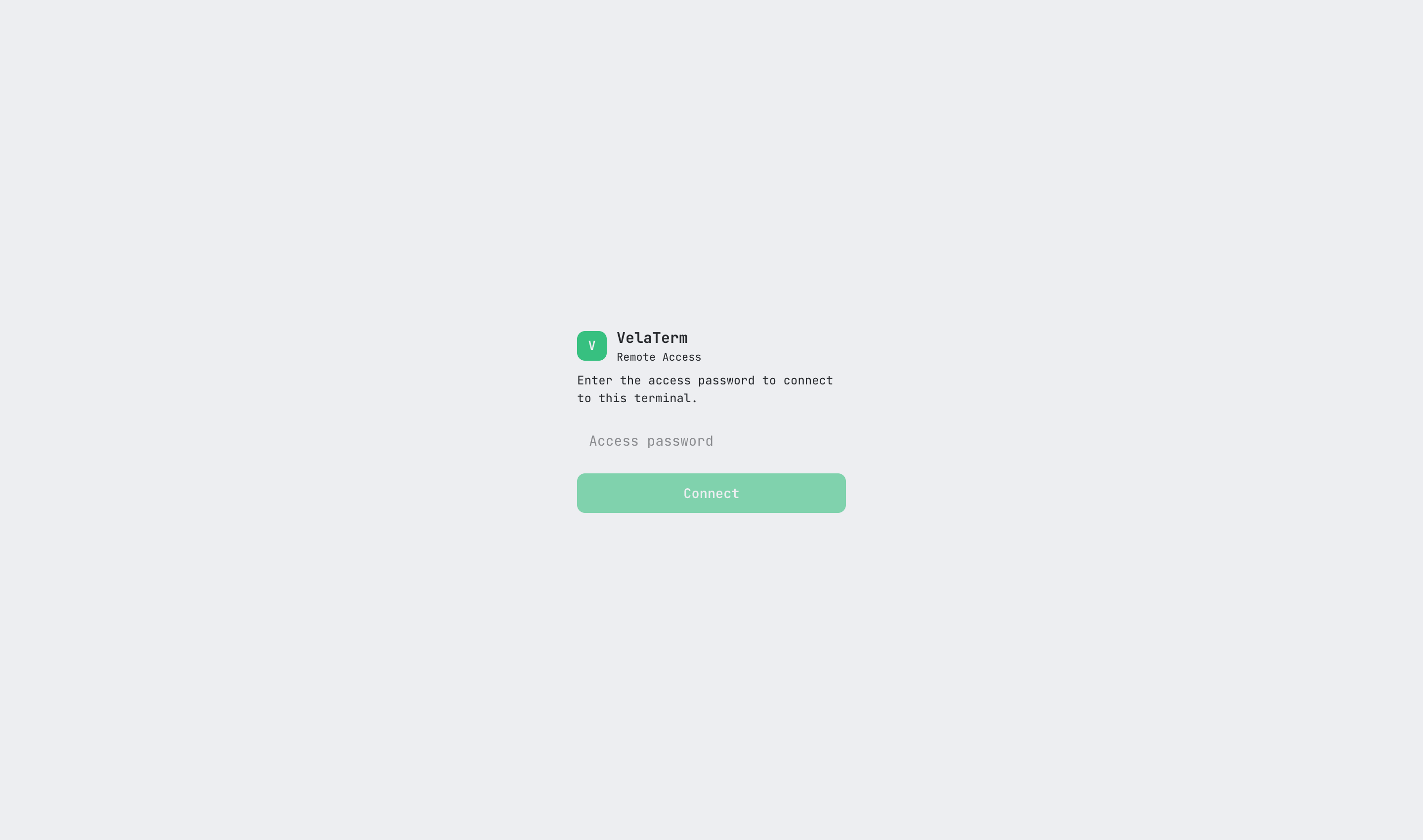
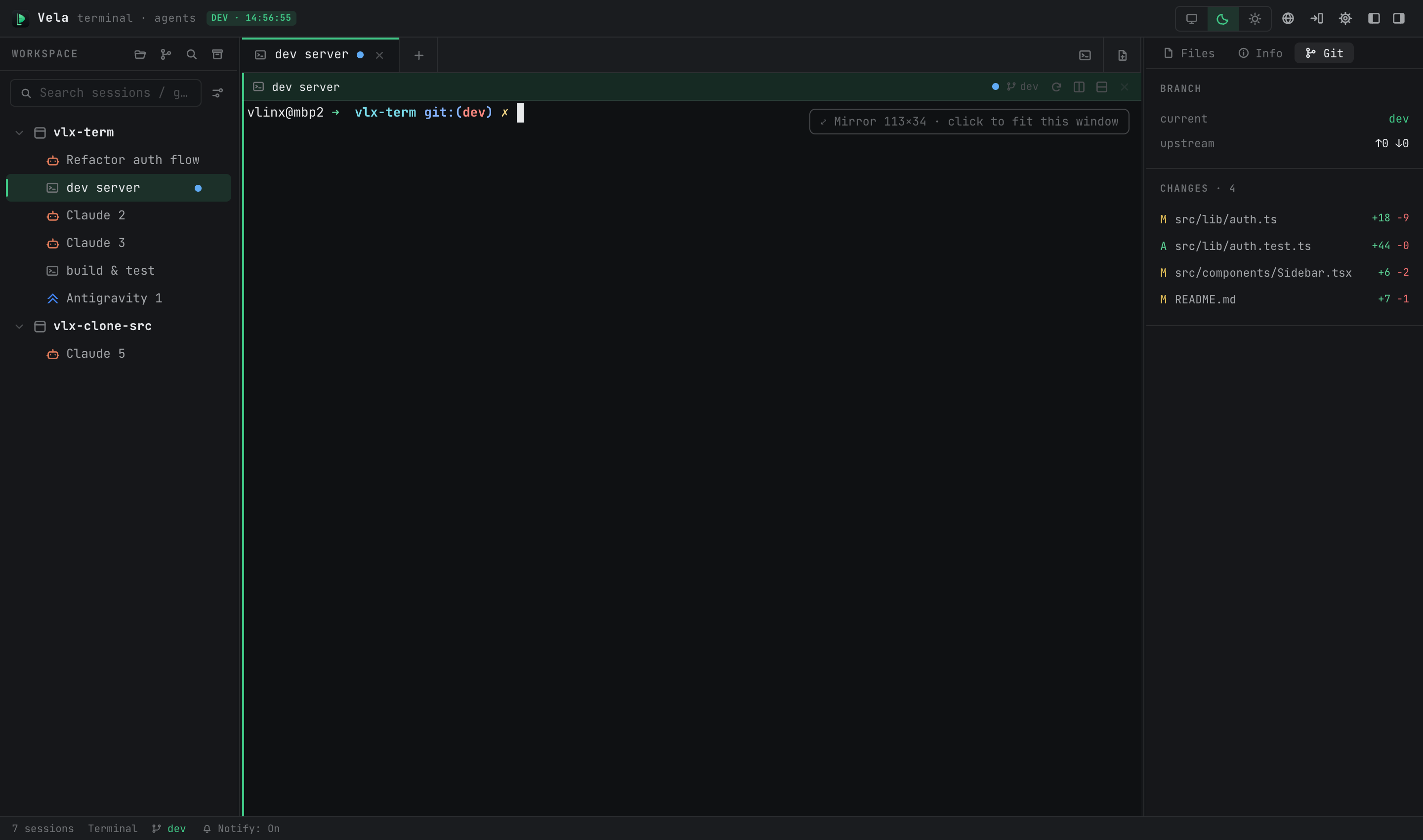
The browser client shares the same live sessions as the desktop: same tree, same terminal output, both sides can type, and each side sees the other's actions in real time. Window arrangement (open tabs, splits) is per-client and independent.
Terminal size has an "owner" concept: when one session is open on several clients, size follows the owner and other clients see a scaled mirror with a "Mirror … click to fit this window" bar (top-right of the terminal in the screenshot above) — click it to take over sizing for the current window.
2.4 Device management
The panel's Paired devices list shows every device that has connected:
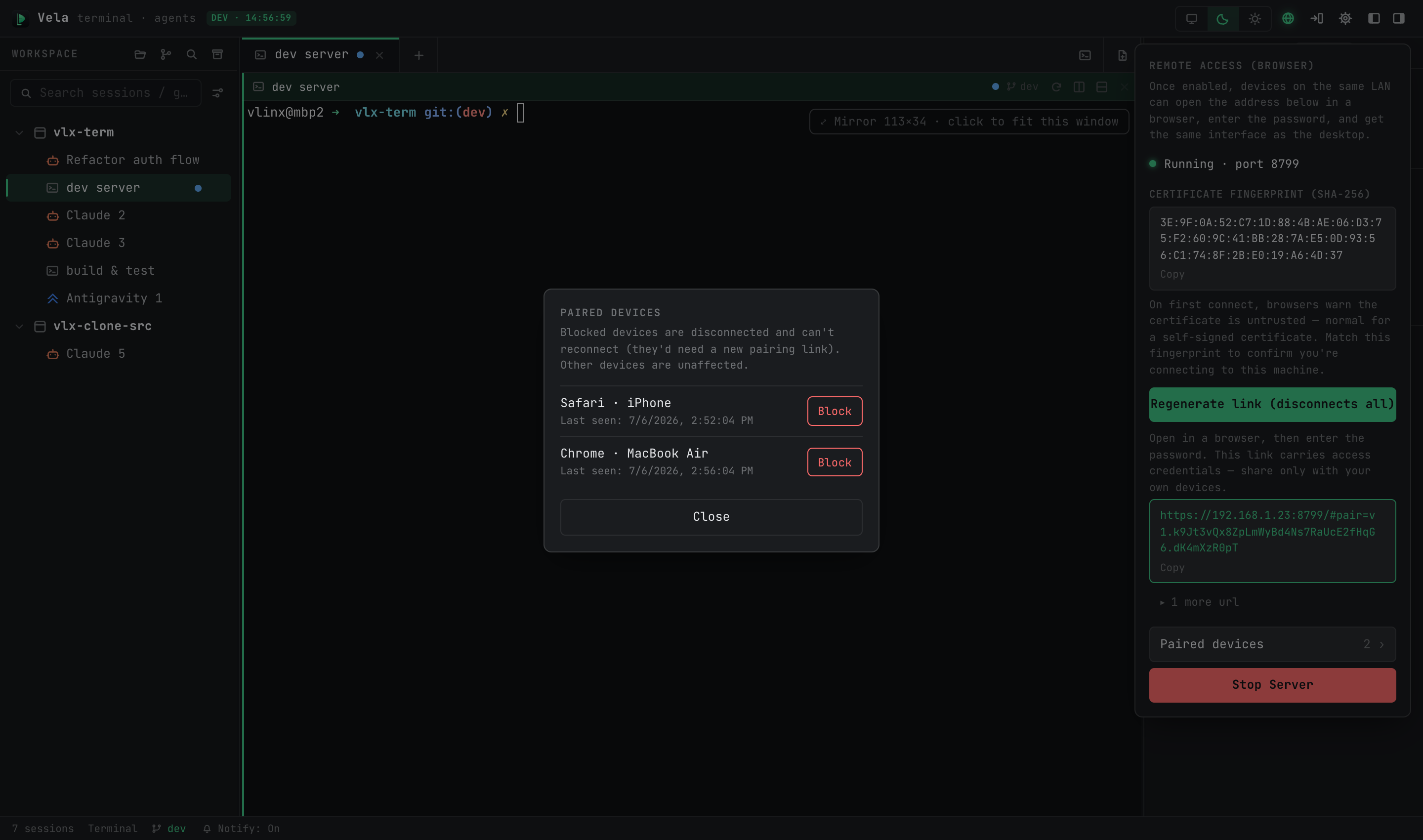
To ban a device, click Block next to it and confirm — it's disconnected immediately and can't reconnect (it would need a fresh pairing link); other devices are unaffected. Device names are self-reported by clients — treat them as labels, not identity. To kick everyone at once, use Regenerate link.
2.5 Stop the server
Stop Server at the bottom of the panel. Browser clients disconnect; running sessions are unaffected — they belong to the desktop app itself.
3. Connecting out (Connect to Remote Server)
Click the connect button in the title bar; the panel offers SSH and URL modes.
3.1 SSH mode: all the remote needs is SSH
For a remote dev box (typically Linux or macOS) with no VelaTerm components installed. Connecting runs the whole pipeline automatically: probe the remote's OS and architecture → transfer the matching vela-server → start it as a persistent process → set up local port forwarding → open a remote window and log in automatically.
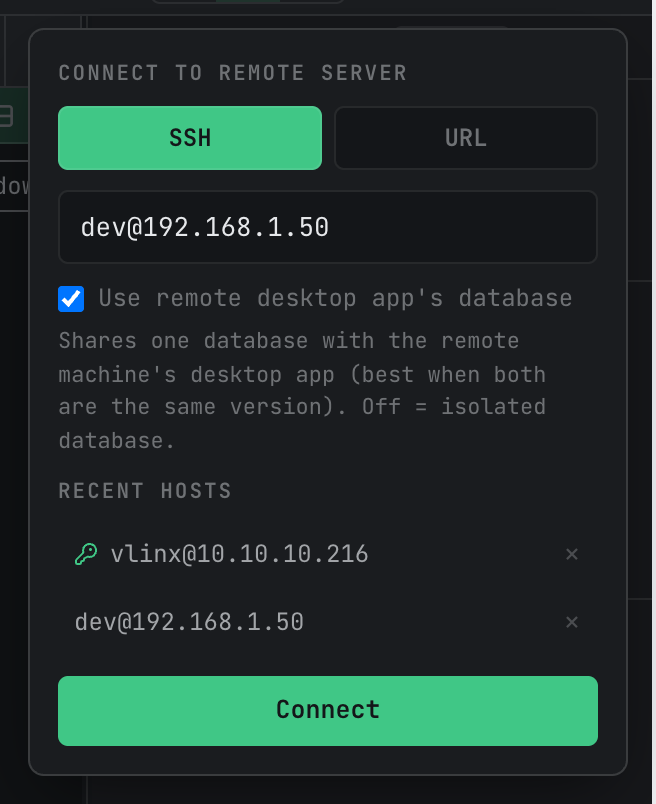
Enter user@host[:port] and hit Connect. Details worth knowing:
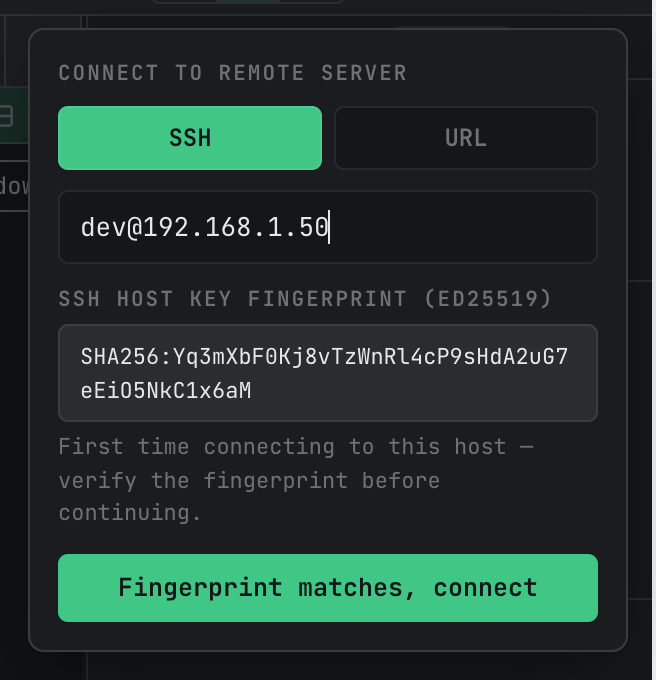
Host key verification on first connect. A new host shows its SSH host key fingerprint for you to verify; confirm with "Fingerprint matches, connect" and it's written to known_hosts — no more prompts for that host. If a known host's fingerprint ever changes, the panel turns red — find out why (reinstalled OS, different machine, or someone tampering with the link) before confirming.
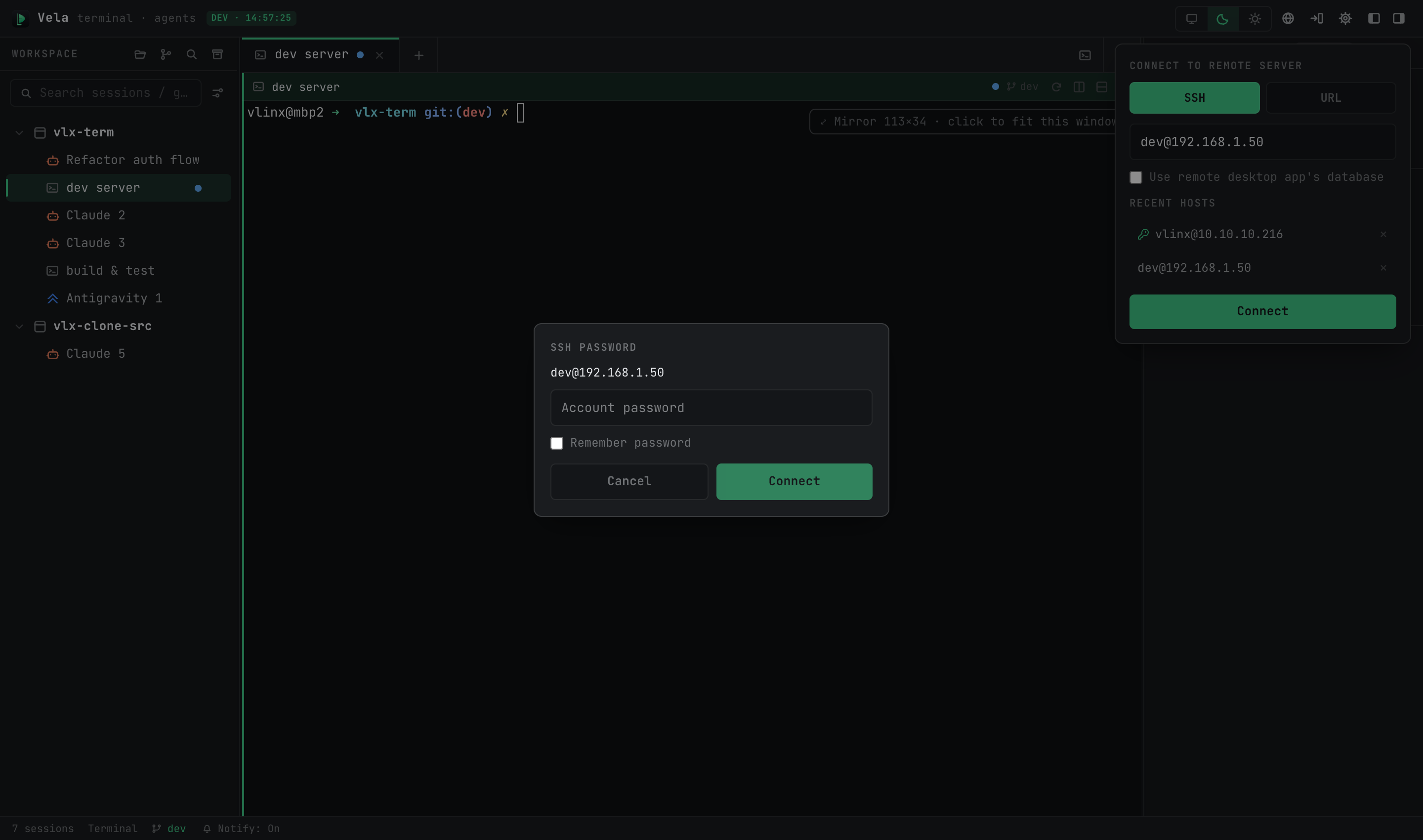
Authentication. Your existing SSH setup (ssh-agent, ~/.ssh/config, keys) is reused transparently; a password prompt appears only when public-key auth fails. "Remember password" stores it in the system keychain (never the database) and reuses it next time.
Data mode: "Use remote desktop app's database". Unchecked (default), the remote server uses an isolated data directory (~/.velaterm/data), fully separate from any VelaTerm desktop app installed on that machine. Checked, it opens the remote desktop release build's database instead — both sides see the same session tree, which suits "that machine runs VelaTerm day-to-day and I'm taking over the same projects remotely". What's shared is the database file on disk, not running processes (see §4.1); keeping both ends on the same version is recommended.
Recent hosts. Hosts you've connected to are listed; clicking one only fills the input (no auto-connect) — review, then Connect. A key icon means a saved password; × forgets the host (and its saved password).
Connection progress. First connect transfers the server binary (tens of MB) — the button shows Preparing / Transferring with a percentage. Reconnects reuse the server already on the remote and are much faster.
3.2 URL mode: the other side already has remote access on
For when another machine's VelaTerm has Remote Access running (§2) and you have its pairing link. Compared to opening the link in a plain browser, you get a dedicated window, keychain-backed auto-login, and fingerprint verification handled by the app.
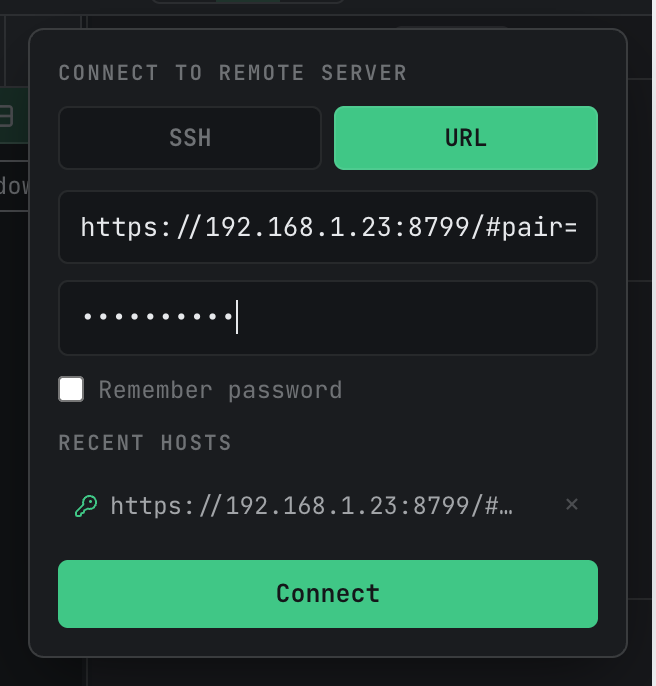
Paste the pairing link, enter the access password set on the other side, Connect. First connect verifies the TLS certificate fingerprint (compare with the Certificate fingerprint shown on the other side's panel); afterwards, unchanged fingerprints connect straight through. Remember password works the same way, via the system keychain.
4. Disconnecting, closing, and what survives
4.1 Three layers of state
Whether "things are still there after a disconnect" depends on which layer you're asking about:
| State layer | Where it lives | When it's lost |
|---|---|---|
| Window layout (open tabs, splits) | In your window | Practically never — reopening restores it |
| Session tree (project / group / session definitions) | Database on the remote's disk | Never — survives machine reboots |
| Running sessions (live terminals, agents mid-task) | The remote server process's memory | Gone when that server process dies |
The first two layers are safe by construction. The only layer to think about is the third: as long as the remote server process lives, your running sessions live.
4.2 What closing the window means
SSH mode: the remote server was started by this connection and belongs to you, so closing the window asks what to do — "Stop server" shuts it down on the remote (ending its running sessions); "Keep running" only disconnects your end, leaving the server up so the next connection to that machine reuses it with every session intact. Want agents to keep grinding while you're away? Pick Keep running.
URL mode: you were a guest on a program that was already running over there. Closing your window just means you leave; the other side keeps going, and everything is there when you come back.
4.3 Drops and reconnects
On network hiccups, a red reconnect bar appears at the top of the remote window and retries automatically; running sessions are unaffected — in SSH mode the remote server is detached from the SSH session (it survives network drops by design).
One boundary to know: that auto-reconnect only covers the window-to-local-forward-port leg. If the SSH tunnel process or the remote server itself has died, the red bar will spin forever and Reconnect won't help — go back to the main window and Connect again. The connect flow detects whether the remote server is still alive: if it is, it's reused (sessions intact); only if it's dead is a new one started.
Also: the remote machine sleeping, logging out, or rebooting ends an SSH-mode server and its running sessions; the session tree, being on disk, is unaffected.
4.4 Quick reference
| Concern | SSH mode | URL mode |
|---|---|---|
| Who owns the remote server | This connection — you started it, you manage it | A long-running program on the other side |
| Default close semantics | Dialog: stop server / Keep running | You leave; the other side keeps running |
| Window layout | Saved per window, restored on reopen | Same |
| Session tree | Isolated DB; or shared with the remote desktop app if you opted in | The other program's own DB |
| Running sessions | Alive as long as the server lives | Long-running by nature; survives reconnects |
5. Security model at a glance
Passwords (SSH account passwords, remote login passwords) are stored only in the system keychain, never the database, and only when you explicitly opt in. LAN browser access runs over TLS with a self-signed certificate; pairing links carry end-to-end encryption credentials, and the server rejects unpaired plaintext connections. Both SSH host keys and remote TLS certificates follow trust-on-first-use: known and unchanged connects straight through; new targets get one verification prompt; changed fingerprints get a red warning — investigate before confirming. Individual devices can be blocked at any time (§2.4), and the pairing link can be regenerated at will.
One more: if the remote window's title bar shows a red "⚠ vX ≠ vY" badge, your client UI and the remote server are on different versions — features may not line up; upgrade both ends to the same version.
6. FAQ
Connected, but the sidebar stays empty or the red bar spins forever? Most likely the SSH tunnel or the remote server is gone — in-window reconnect can't fix that (§4.3). Go back to the main window and Connect again.
Port 8799 won't start? Something else grabbed it; pick another port in the panel and Start again.
Browser says the certificate isn't trusted? Normal for a self-signed certificate — verify the fingerprint and continue (§2.2). To skip per-browser warnings, enter via the pairing link and the app handles trust for you.
Want a remote agent to keep working while you step away? In SSH mode, choose Keep running when closing the window; the session keeps going on the remote. Reconnect later and pick up exactly where it was.
A terminal looks tiny on the phone? That's a scaled mirror following the desktop owner — tap "click to fit this window" at the terminal's top-right to take over sizing on the current device.