AI Agent Sessions
This chapter covers VelaTerm's core differentiator: hosting AI coding agents as typed sessions — live status, automatic conversation resume, forking, and permission control.
1. Supported agents
Nine local agent types are available in the New Session menus: Claude Code, Codex, OpenCode, Copilot CLI, Cursor CLI, Antigravity, Cline, Pi, and Crush. Capabilities differ slightly:
| Agent | Status awareness | Auto-resume | Fork | "Skip permissions" toggle |
|---|---|---|---|---|
| Claude Code | Authoritative (incl. asking) | ✅ | ✅ | ✅ |
| Codex | Weakly authoritative + screen detection | ✅ | ✅ | ✅ |
| OpenCode | Authoritative (incl. asking) | ✅ | ✗ | ✗ (own config) |
| Copilot CLI | Authoritative (incl. asking) | ✅ | ✗ | ✅ |
| Cursor CLI | Authoritative | ✅ | ✗ | ✅ |
| Antigravity | Authoritative | ✅ | ✗ | ✅ |
| Cline | Authoritative | ✅ | ✗ | ✅ (explicit both ways) |
| Pi | Authoritative | ✅ | ✅ | ✗ (no permission system) |
| Crush | Partially authoritative + screen detection | ✅ | ✗ | ✅ |
"Authoritative" means VelaTerm injects the agent's official callback mechanism (hooks / plugin / extension) at launch, so state changes are actively reported by the agent rather than guessed from terminal output. For agents that don't report everything (codex, crush), a screen-detection fallback fills the gaps. Agents you run yourself in a plain terminal are untouched — injection only applies to sessions VelaTerm launches.
2. Status dots: who's working, who's waiting on me
The dot next to each agent session updates live: green = working; yellow = needs you (question, permission prompt, or unread notification); magenta = replied and seen. The status bar's three counters are clickable filters — with many agents in flight, that's how you find the ones waiting for you.
Paired with system notifications: when an agent stops for you (a question, or end of turn) you get a notification, the session gets an unread badge, and the Dock badge counts it; if you're already looking at that session, nothing fires. On the signed macOS build, clicking a notification jumps straight to the session. The "Notify" item in the status bar is the global toggle.
3. Auto-resume: close it, reopen it, the conversation is still there
The mental model in one line: each agent session node in the tree = one ongoing conversation.
- On first run, VelaTerm remembers the agent's own session id automatically.
- After that — whether you closed the tab or quit the app — reopening the node relaunches the agent with its resume flag (e.g.
claude --resume <id>) and the context comes right back. Before resuming, VelaTerm verifies the conversation still exists; if it was deleted, it silently falls back to a fresh start instead of hanging. - Want a fresh conversation? Create a new node. The whole mechanism is automatic — no switches, no cleanup.
Manual resume: if you have an agent session id from elsewhere (say, a conversation you ran in a plain terminal), use "Resume Session…" at the bottom of the New Session menu — pick the type, paste the id, and that conversation joins the tree as a proper session node.
4. Fork: branch off the current conversation
Right-click a claude / codex / pi session that has a conversation → "Fork Session". You get a sibling node that branches off the current history of the source conversation, leaving the source untouched — think git branch. Great for "same context, try two approaches".
5. Permission modes and launch arguments
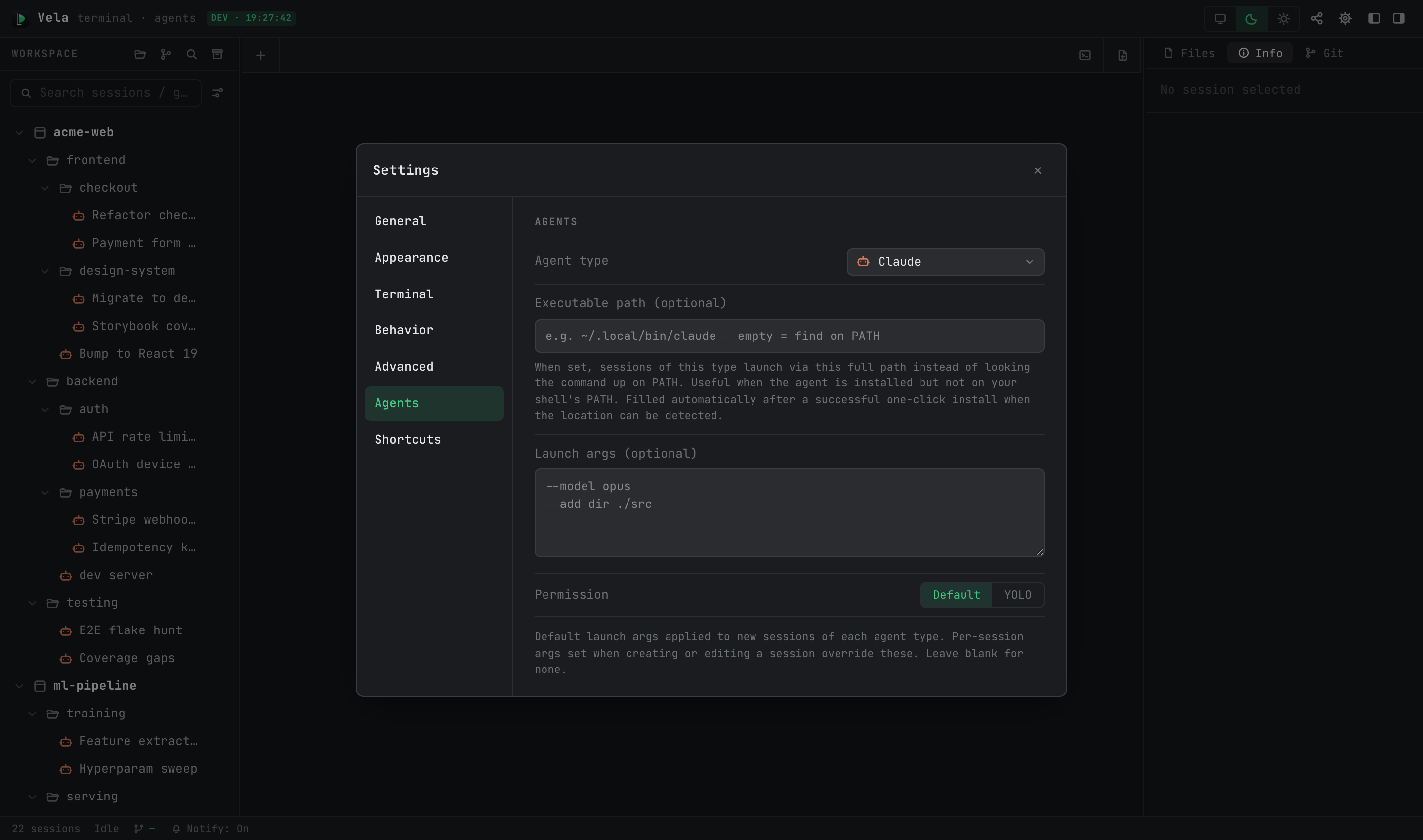
Two-level permissions: each supported session can run in "Default" (step-by-step confirmation) or "skip all permission confirmations" — a.k.a. YOLO mode, which launches the agent with its corresponding flag (e.g. claude's --dangerously-skip-permissions). Toggle per session via "Skip all permission confirmations" in the session's edit form; set the per-type global default in Settings ▸ Agents.
Custom launch args: the session edit form's "Launch args" appends extra command-line arguments for that session; Settings ▸ Agents holds a per-type default template, and "New with launch args…" in the New Session menu is a one-off parameterized create.
Executable path: if an agent is installed outside PATH, set its "Executable path" per type in Settings ▸ Agents; leave empty to look the command up on PATH.
6. Not installed? Install guidance
Launching an agent that isn't installed doesn't dead-end in command not found: an install-guide card appears in the session with the recommended install command for your OS — copy it, or run it in place with one click. After install, the binary's location is auto-detected and filled into the path setting, and a retry button relaunches the session. Remember each agent still needs its own login / API key setup; the card links to the docs.
7. The Info panel: model, usage, resources
With an agent session open, the right panel's Info tab shows its runtime details:
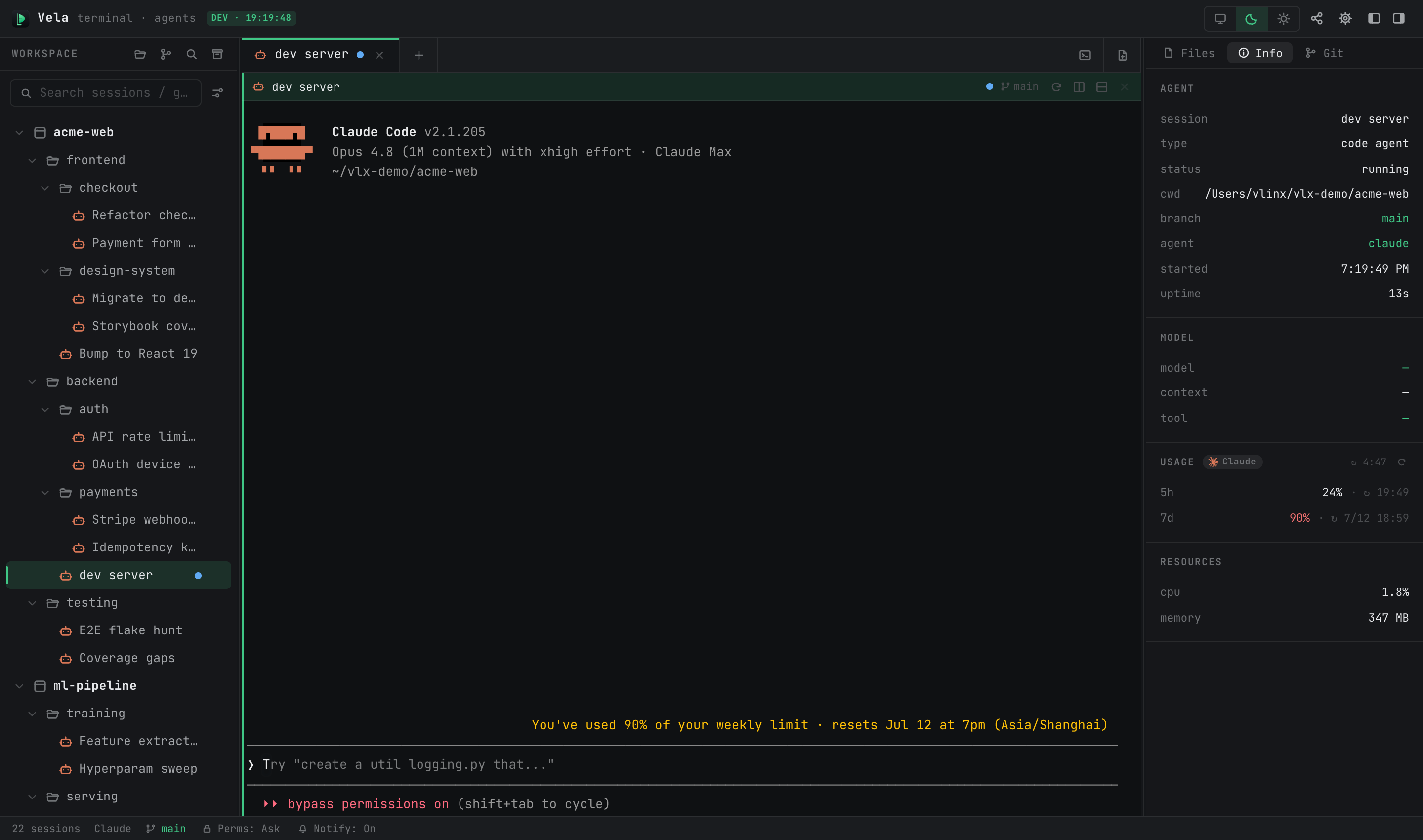
- AGENT: session name, type, run state, working directory, Git branch, start time, uptime.
- MODEL / This turn (claude): current model, context usage, tool in flight.
- USAGE (claude / codex): official quota usage (5-hour and 7-day windows); refresh interval is configurable (Usage refresh).
- RESOURCES: measured CPU / memory of the session's process tree.
8. Transcripts, export, and archiving
- Right-click → "Export Session…" (claude / codex, shown once a conversation has been captured) writes the full context to Markdown — including assistant thinking and every tool call with its inputs and results.
- Archived agent sessions are readable as parsed transcripts in the archive panel (no terminal replay needed); restoring re-enables resume as usual. See Interface & Session Management §7.
9. Odds and ends
- Auto-naming: unnamed sessions take their name from your first message (claude and others).
- Live theme following: switching light/dark re-skins running claude sessions instantly, no restart.
- Vela Skills: the "Vela Skills" toggle in Settings ▸ General installs the
/vspawn,/vspawn-tree, and/vopenskills into~/.claude/skills/, letting claude spawn sub-sessions and open documents from inside a conversation (see Session Spawning & Git Collaboration). - Windows: claude / codex fully supported (via PowerShell); the other types are best-effort.