Settings & Shortcuts
Settings open from the gear button in the title bar (on macOS also the app menu, "Settings… ⌘,"). Seven categories on the left; this chapter is an item-by-item reference, ending with the default key bindings and how to rebind. Settings are shared between the desktop app and browser remote clients (a few purely per-client view options aside).
1. General
| Item | Description |
|---|---|
| Language | UI language; Auto (follow system) by default, or pin one of eleven languages |
| System notifications | Notification permission state and toggle, with per-platform steps when the OS has denied it |
| Notification sound | Sound for notifications |
| Vela Skills | One-click install of the /vspawn, /vspawn-tree, /vopen claude skills into ~/.claude/skills/ (installed and removed as a bundle, refreshed on upgrade) |
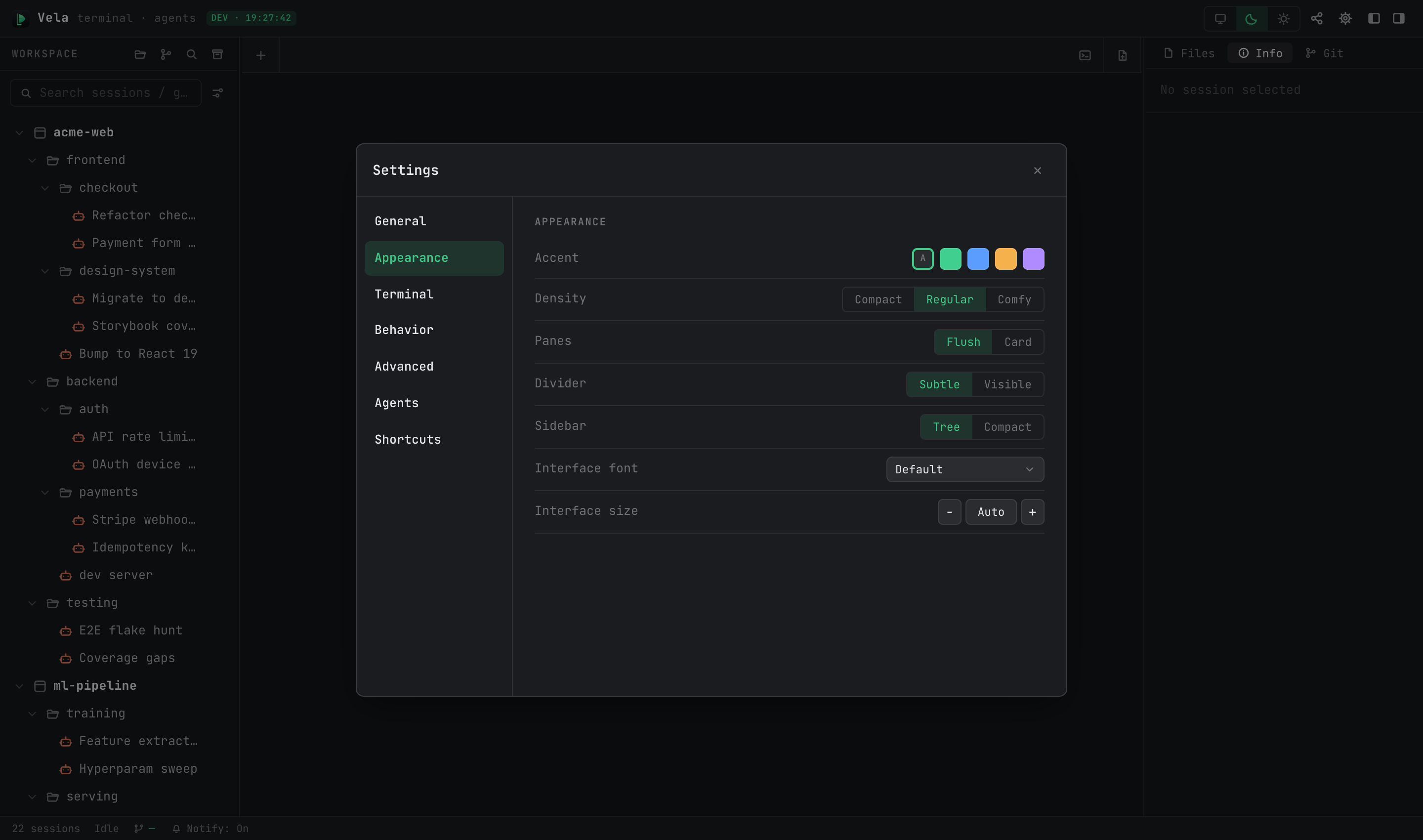
2. Appearance
| Item | Description |
|---|---|
| Accent | Accent color: follow theme, or one of four fixed colors |
| Density | UI density: Compact / Regular / Comfy |
| Panes | Pane style: Flush / Card |
| Divider | Divider style: Subtle / Visible |
| Sidebar | Sidebar style: Tree / Compact |
| Interface font / size | UI font and size (Auto or manual stepping) |
Light/dark themes are switched from the title bar, not here (follow-system / dark / light). Running claude sessions re-skin instantly on switch.
3. Terminal
| Item | Description |
|---|---|
| Terminal font / size | Terminal font and size (⌘+ / ⌘- / ⌘0 adjust on the fly) |
| Terminal renderer | Rendering backend; keep the default (DOM) |
| Redraw on tab switch | Force a full repaint when switching tabs — enable if TUIs occasionally look glitched |
| Default shell (Windows only) | Default shell for new terminal sessions |
4. Behavior
| Item | Description |
|---|---|
| Tabs | Tab mode: Multi (default) / Single (single reused tab) |
| Background limit | Cap on background keep-alive tabs (default 32); past it, the oldest inactive tab is ended automatically |
| Confirm before spawn | Show the confirmation card before spawning child sessions (on by default) — see Session Spawning & Git Collaboration |
| Usage refresh | Refresh interval for the Usage quota in the Info panel |
| Image paste | Image paste behavior: Upload as file (materialize to a path) / Agent default |
| Auto-clean pasted images | Periodically clean up pasted temp images, with a "Clean now" button |
| System notifications | Shortcut to the notification permission controls (same as General) |
5. Advanced
| Item | Description |
|---|---|
| Foreground-priority output | Output scheduling that protects typing latency while agents flood output (on by default); turn off to compare if you suspect display issues |
| Record session logs | Session recording (off by default). When on, terminal content is recorded in full — archives get replay, global search covers terminal output |
6. Agents
Configured per type (Claude / Codex / OpenCode / …), applying to newly created sessions of that type; per-session settings in the edit form override these defaults.
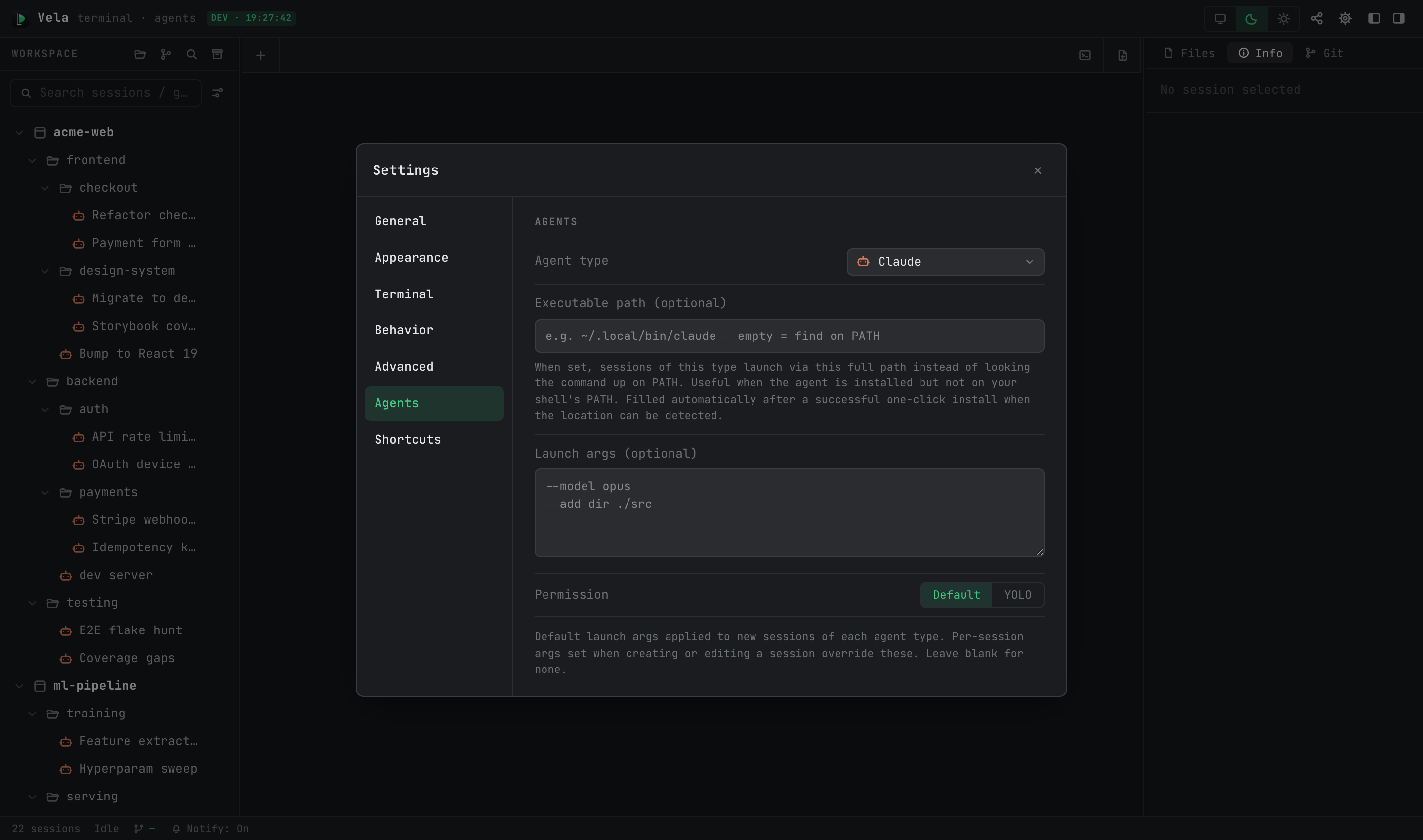
| Item | Description |
|---|---|
| Executable path | Full path to the executable. Empty = look up the command on PATH; set it when the agent lives outside PATH. Auto-filled after a successful one-click install |
| Launch args | Default launch-argument template for the type (e.g. --model opus) |
| Permission | Default permission level: Default (step-by-step confirmation) / YOLO (skip all permission prompts) |
7. Shortcuts
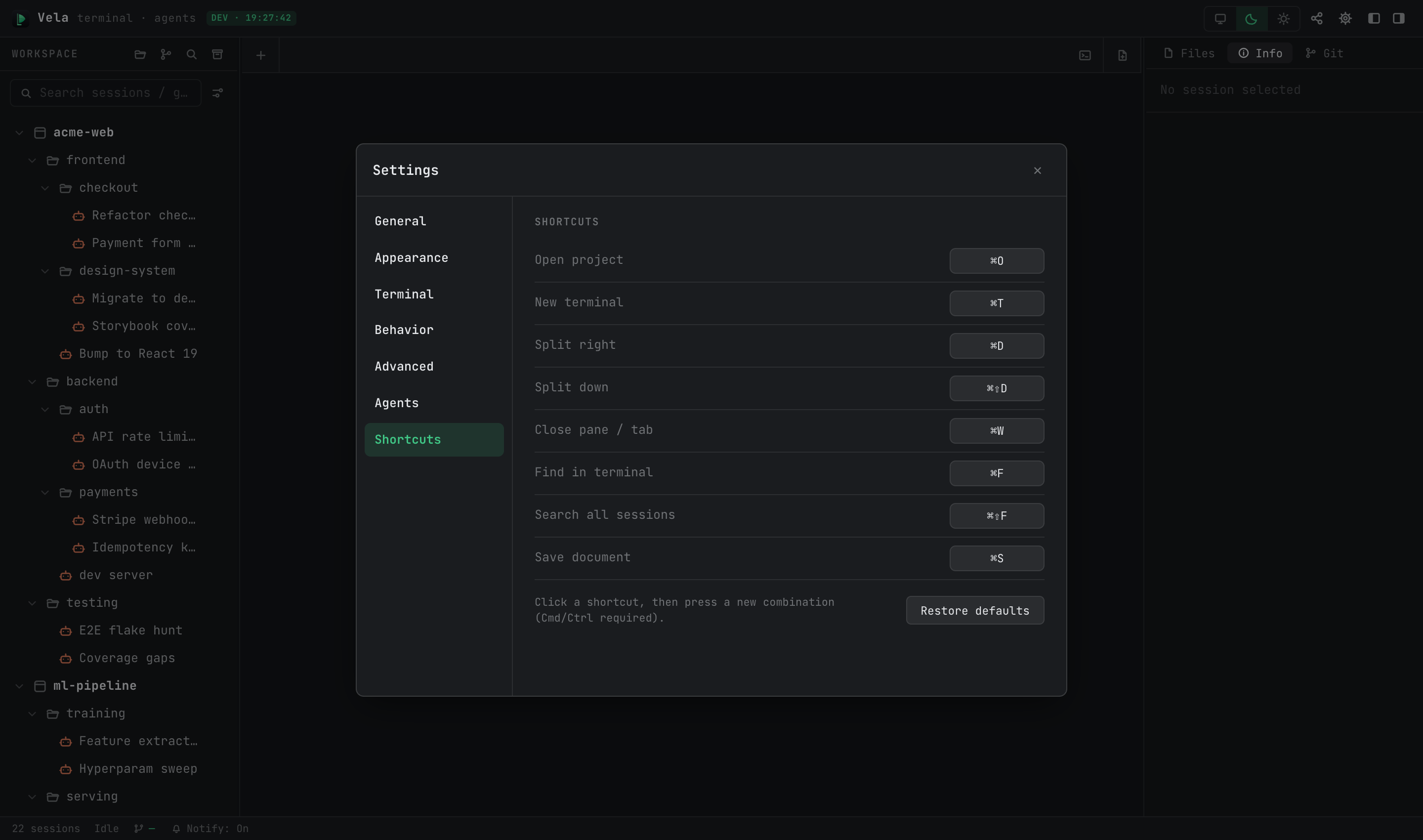
Click an action's binding, then press the new combination (must include ⌘/Ctrl). Conflicts name the current owner; "Restore defaults" resets everything. Defaults:
| Action | macOS | Windows / Linux |
|---|---|---|
| Open project | ⌘O | Ctrl+Alt+O |
| New scratch terminal | ⌘T | Ctrl+Alt+T |
| New browser tab | ⌘⇧B | Ctrl+Alt+B |
| Close pane / tab | ⌘W | Ctrl+Alt+W |
| Split right | ⌘D | Ctrl+Alt+D |
| Split down | ⌘⇧D | Ctrl+Alt+E |
| Find in terminal | ⌘F | Ctrl+Alt+F |
| Search all sessions | ⌘⇧F | Ctrl+Alt+G |
| Save document | ⌘S | Ctrl+S |
Fixed, non-rebindable keys: ⌘1–9 (switch tabs), ⌘+ / ⌘- / ⌘0 (terminal font size).